Remote work isn't going anywhere. Whether your team works from home full-time, a few days a week or just occasionally when life demands it, one thing is certain: every home office represents a potential entry point for cyber criminals.
The good news is that securing remote work doesn't require enterprise-grade technology or a massive budget. It requires awareness, some simple configuration changes and clear expectations. Let's break down.
Why home offices are easy targets
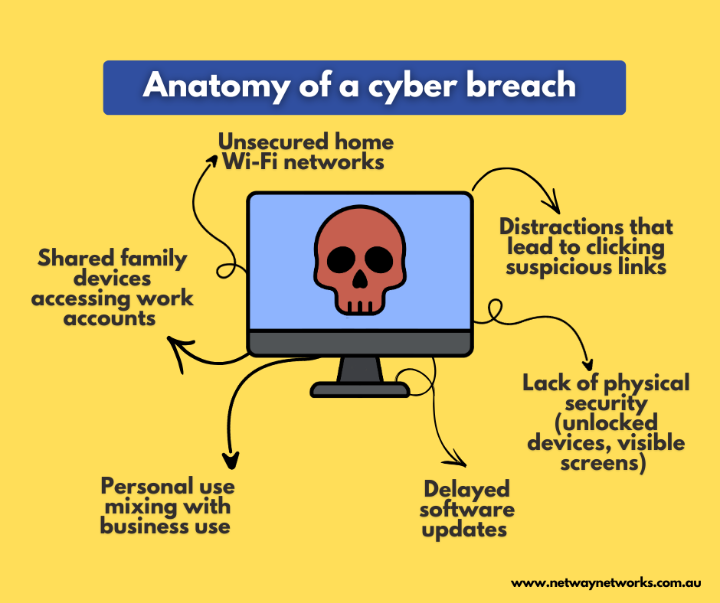
Cyber criminals specifically target remote workers because they know home environments are typically the weakest link in a business's security chain. They are counting on:
- Unsecured home Wi-Fi networks.
- Shared family devices accessing work accounts.
- Distractions that lead to clicking suspicious links.
- Lack of physical security (unlocked devices, visible screens).
- Delayed software updates.
- Personal use mixing with business use.
When your employee's home setup is compromised, it is not just their personal information at risk, it is your entire business network, your customer data and your reputation.
The non-negotiable basics
Before anyone on your team works remotely, these fundamentals must be in place. Think of them as your minimum security baseline.
1. Secure the Wi-Fi network
Most people's home Wi-Fi is shockingly vulnerable. Many are still using default passwords, outdated encryption or have never changed the settings since installation.
What you need:
- Strong, unique password: Not the one printed on the router, not a family member's name. A genuinely random password combining uppercase, lowercase, numbers and symbols.
- WPA3 encryption (or WPA2 minimum): If the router is old enough that it only supports WEP or WPA, it needs replacing. These older protocols are easily cracked.
- Changed default router admin credentials: The username and password to access router settings should never remain as "admin/admin" or whatever came from the factory.
- Guest network for visitors: Family members, friends and smart home devices shouldn't share the same network as work devices.
How to check: Ask employees to verify their Wi-Fi security settings. If they are unsure how, schedule a quick video call to walk through it together or provide a simple guide with screenshots. Most routers can be accessed by typing 192.168.1.1 or 192.168.0.1 into a web browser.
2. Lock down devices
Work devices should be configured to minimise risk even if an employee steps away for just a minute.
Essential settings:
- Automatic screen locking: Devices should lock after 5 minutes (or less) of inactivity. No exceptions.
- Strong passwords or biometric authentication: No PIN codes like "1234" or easily guessed passwords.
- Full disk encryption: If a laptop is lost or stolen, encryption ensures data can't be accessed. Most modern devices support this natively (BitLocker for Windows, FileVault for Mac).
- Find My Device enabled: The ability to remotely locate, lock, or wipe a lost device is crucial.
- Disabled auto-login: Devices should require authentication every time they are turned on or wake from sleep.
Make it easy: Provide step-by-step instructions for configuring these settings on the devices your business uses. Better yet, have your IT provider pre-configure devices before they are issued to employees.
3. Keep software updated
Those update notifications that most people dismiss? They are often patching serious security vulnerabilities.
What needs updating:
- Operating system (Windows, macOS, etc.)
- Web browsers
- Antivirus/anti-malware software
- Business applications (Microsoft 365, Adobe, etc.)
- VPN software
- Router firmware
Set it and forget it: Enable automatic updates wherever possible. For critical business systems that require manual updates, create a monthly reminder for employees to check and install pending updates.
The router blind spot: Most people never update their router firmware, yet routers are prime targets for attackers. Add router updates to your quarterly maintenance checklist.
4. Install and maintain security software
Every device accessing your business systems should have current antivirus/anti-malware protection running.
Minimum requirements:
- Real-time scanning enabled
- Automatic definition updates
- Regular full system scans scheduled
- Firewall enabled and properly configured
Beyond antivirus: Consider endpoint detection and response (EDR) solutions that provide more comprehensive protection than traditional antivirus. Many modern business security suites include this as standard.
Don't assume it is working: Periodically verify that employees' security software is actually running and up to date. It is easy for these to become disabled or outdated without anyone noticing.
Other considerations
Digital security gets all the attention but physical security is just as important when people work from home.
Screen privacy
The risk: Sensitive information visible to family members, delivery drivers, neighbours or anyone who can see through a window.
Simple solutions:
- Position desks away from windows or use blinds/curtains.
- Use privacy screen protectors that limit viewing angles.
- Develop a habit of minimising windows containing sensitive information.
- Lock screens before stepping away, even at home.
The video call consideration: What is visible in the background during client calls? Whiteboards with confidential information? Documents on desks? Screens showing data? Train your team to consider what their camera reveals.
Device storage and transport
When not in use:
- Laptops should be stored in a secure location, not left on the kitchen counter.
- Work phones shouldn't be accessible to family members.
- Physical documents should be locked away if contain sensitive information.
When traveling between home and office:
- Never leave devices visible in cars.
- Use bags that don't obviously contain laptops.
- Consider tracking devices (AirTags, Tile) for easy recovery if lost.
- Backup critical data before traveling.
Document security at home
If employees print confidential documents at home, you need clear guidelines:
- Secure storage (locked drawer or cabinet).
- Proper disposal (shredding, not recycling).
- Minimising printing of sensitive information.
- Clear desk policy at end of each workday.
The Public Wi-Fi Challenge
Eventually, someone will want to work from a café, airport, or hotel. This requires additional precautions.
The rules for public Wi-Fi
Never on public Wi-Fi:
- Accessing financial systems.
- Handling sensitive customer data.
- Entering passwords (unless through a VPN).
- Any activity involving confidential information.
Always use a VPN: If employees must work on public Wi-Fi, a Virtual Private Network (VPN) encrypts their connection and protects data from interception. This should be non-negotiable policy.
Better alternatives:
- Use phone hotspot instead of public Wi-Fi.
- Wait until back on a secure connection.
- If urgent, use mobile data rather than public Wi-Fi.
Securing mobile hotspots
Personal hotspots are generally safer than public Wi-Fi, but still need protection:
- Use strong passwords for the hotspot.
- Keep mobile device software updated.
- Limit what is accessed even over hotspot.
- Disable hotspot when not in use.
- Monitor data usage for anomalies.
The bottom line
Remote work is here to stay and securing it isn't optional. But it also doesn't have to be overwhelming.
Start with the basics: secure Wi-Fi, locked devices, updated software and clear expectations. Build from there as your needs and capabilities grow. Most importantly, foster a culture where security is everyone's responsibility and where people feel supported in doing the right thing.
Need help securing your remote workforce? Netway specialises in helping Australian businesses develop practical, effective remote work security strategies. Contact us today to learn how we can help you.